
How to Update ETSJavaApp by ETrueSports Safely
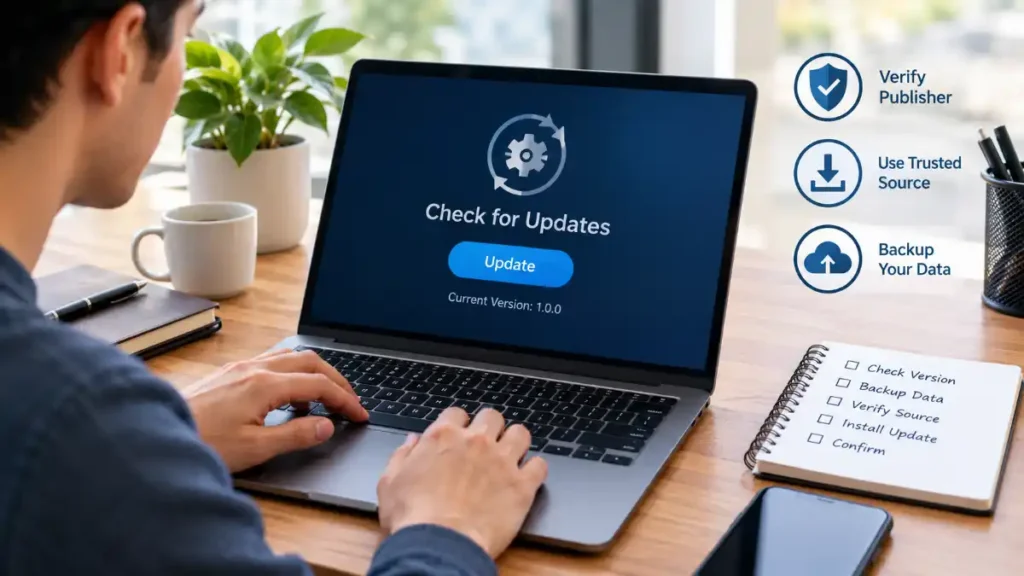
To learn how to update ETSJavaApp by ETrueSports, first check your installed application’s version, publisher, and original download source. Online guides describe updating ETSJavaApp through application settings or a replacement installer, but a current official release, authenticated download, and verified update mechanism could not be independently confirmed. Before installing anything, verify the software’s identity, back up important data, and confirm that the proposed update comes from a trustworthy publisher.
If you already have an application named ETSJavaApp, you can check its version, look for available updates, and troubleshoot installation problems. However, the steps below are general software-maintenance procedures, not independently verified ETSJavaApp-specific features.
Before Updating ETSJavaApp: Verify Your Installation
Start by confirming that the application installed on your device matches the software described in published guides. A familiar name or matching filename does not establish authenticity.
Check the following details:
- Application name: Confirm the exact name shown in your installed applications.
- Installed version: Look for an About, Help, or Version section.
- Publisher: Check the developer or publisher information associated with the installation.
- Source: Identify where the application was downloaded or installed.
- Operating system: Record your Windows, macOS, Linux, or Android version.
On Windows 11, open Settings → Apps → Installed apps. Microsoft’s instructions for finding installed applications explain how to locate software, although version and publisher details may require additional checks.
On macOS, inspect the Applications folder and use Get Info or the application’s About menu. On Linux, check the relevant package manager or application properties.
The published etruesports etsjavaapp guide describes a Java-based application and mentions Windows, macOS, Linux, and Java 11 or later. These claims have not been independently validated as official ETSJavaApp requirements.
If you cannot establish the application’s publisher or original installation source, avoid attempting an update until its identity can be verified.
How to Update ETSJavaApp Safely: Step-by-Step
Follow these steps only for an identifiable installation. Do not assume that every application labeled ETSJavaApp includes an automatic updater.
Step 1: Check Your Installed Version
Open ETSJavaApp and look for an About, Help, Settings, or application-information section.
If a version number appears, record it exactly. You may also find version details in your operating system’s application properties or package records.
Remember that the ETSJavaApp version and Java runtime version are different. Updating Java does not automatically update the application.
If no version information is available, do not estimate it from the installation date or filename.
Step 2: Back Up Your Existing Data
Before making changes, preserve important information associated with the installation.
Depending on the application’s actual functionality, this might include:
- User-created files and exported data.
- Configuration files and preferences.
- Locally stored profiles or saved settings.
Copy relevant files to a separate, secure location. If an authenticated application provides a documented backup or export feature, follow its instructions.
Because ETSJavaApp’s update behavior has not been independently verified, no guarantee reinstalling or updating it will preserve existing data.
Step 3: Look for a Built-In Update Option
Open the application’s settings or help menu and look for an update-related option, if available.
Some published instructions mention a Check for Updates feature, but its existence in ETSJavaApp has not been independently confirmed.
If an update notification appears, verify the publisher and download destination before approving it. A notification inside an unidentified application is not sufficient evidence that the update is legitimate.
If no update option appears, the application may lack a built-in updater, or no update may be available.
Step 4: Verify the Update Source
Before downloading or installing an update, confirm that it comes from an authenticated publisher or trusted distribution channel.
Check for:
- A publisher identity established through an independent, trustworthy source.
- Release information connecting the update to that publisher.
- Compatibility with your operating system and application installation.
- A valid digital signature, where supported, whose signer matches the verified publisher.
- An official checksum, if available through a separately trusted source.
A valid digital signature alone does not prove that a file belongs to ETSJavaApp. Similarly, a checksum displayed on an untrusted download page does not establish the file’s legitimacy.
Avoid unidentified EXE, JAR, APK, DMG, or archive files advertised as ETSJavaApp updates. Never disable antivirus protection, bypass operating-system security warnings, or grant elevated privileges to an unidentified installer.
Step 5: Install and Confirm the Update
Proceed only when the update’s authenticity, publisher, and compatibility have been established.
Follow the authenticated publisher’s instructions rather than assuming a particular installation method.
After installation:
- Restart the application if required.
- Check its version again.
- Confirm that the expected version is installed.
- Open important files and settings to verify that they still work.
- Retain your backup until the installation has been tested successfully.
If the version remains unchanged, check whether the update completed and whether you are launching the correct application installation.
Is There an Official ETSJavaApp Version or Release Date?
An authenticated latest ETSJavaApp version, official release date, verified changelog, and trustworthy download location could not be established from the available documentation.
Search results for etsjavaapp release date by etruesports include articles discussing software releases, but a published version number or date does not independently establish an official release.
Reliable release information should connect an identifiable publisher with a specific software version, compatible installation package, and verifiable distribution source.
Until those details can be authenticated, avoid treating advertised version numbers, security patches, or new features as confirmed.
Fix Common ETSJavaApp Update Problems
If you have an authenticated installation and its authorized update fails, use the symptoms to identify possible causes.
| Problem | Safe troubleshooting action |
| No update option | Check available menus and authenticated documentation. The application may not have a built-in updater. |
| Download fails | Verify the source, internet connection, and available storage. |
| Installation is blocked | Review compatibility requirements and operating-system security warnings. |
| Java compatibility error | Check whether the application requires Java and whether the installed runtime is compatible. |
| Application crashes | Review error messages, system compatibility, and available application logs. |
| Version remains unchanged | Confirm installation completion and check which application copy is launching. |
Check Java Compatibility
If your authenticated installation requires Java, open Command Prompt, Terminal, or a Linux shell and enter:
java -version
This displays the Java runtime available through your current command-line environment. It does not show the ETSJavaApp application version.
Oracle provides instructions for checking the installed Java version.
Although an ETrueSports guide mentions Java 11 or later, that requirement has not been independently verified. Install or update Java only when the authenticated application’s compatibility requirements justify it.
Resolve Installation Errors
On Windows, Microsoft’s installation troubleshooting guidance can help diagnose certain installation and removal failures.
On macOS, review compatibility information and security warnings. On Linux, inspect package dependencies, installation logs, and compatibility with your distribution and system architecture.
Java-related problems can involve incompatible runtime versions, missing dependencies, or incorrect configuration. Oracle’s Java troubleshooting documentation offers general diagnostic information, although some guidance concerns older Java technologies.
These checks can help troubleshoot software problems, but they cannot establish the authenticity of an unidentified ETSJavaApp installer.
Is ETSJavaApp Available on iOS or Android?
ETSJavaApp and ETSiOSApp should not be assumed to be the same application or share an update mechanism.
The published information about the etsiosapp version from etruesports describes a separate mobile application. However, its relationship to ETSJavaApp and its distribution status have not been independently authenticated.
People searching for the etruesports iOS app should verify any app store listing, including its developer identity and version information, before downloading software.
Likewise, information labeled etsiosapp update by etruesports does not establish an official ETSJavaApp update. Instructions found through etsiosapp on how to update from etruesports should be evaluated separately because they concern a purported mobile application rather than a confirmed ETSJavaApp update channel.
An Android APK advertised under either name also requires independent publisher verification. Avoid sideloading unidentified installation packages.
What to Do When No Verified Update Is Available
If you cannot authenticate a newer release, leave the existing installation unchanged and preserve your important data.
Be cautious of third-party download pages, unfamiliar installers, and websites promoting e-sports codes, as though gaming-related codes could authenticate an update or provide legitimate software access. Such claims are not substitutes for publisher verification.
Continue maintaining your operating system and other trusted software through their established update channels. If reliable publisher documentation becomes available, compare its release details with your installed version before taking further action.
The safest approach is to verify the application, protect your data, and install only an authenticated, compatible update. When those conditions cannot be met, there is no independently verified ETSJavaApp update procedure to recommend.
Read also: How to Update ETSJavaApp by ETrueSports
Frequently Asked Questions
Will updating ETSJavaApp delete my saved data?
There is no independently verified information confirming how ETSJavaApp updates handle existing data. Back up important files and settings before attempting an authenticated update. Afterward, check that your information remains accessible.
Do I need to update Java separately?
Only if your authenticated application requires Java and its documented compatibility requirements call for a different runtime. Updating Java and updating ETSJavaApp are separate operations, and installing a newer Java version does not guarantee that application errors will disappear.